Script component
The Script component allows you to modify messages using scripts written in Groovy or JavaScript. The scripts can either be provided directly or uploaded as files. Scripts are able to read and modify the body, headers, and properties of messages that pass through it.
To simplify the development of scripts, the Script component offers the ability to evaluate scripts given a set of test values for the body, headers, and properties of a message.
If you migrate from version 4.14.x or older then check the Scripts migration guide for new version of Groovy and JavaScript.
Configuration
The Script component has the following configuration options:
Upload method
Select if you want to enter the script manually in or through uploading a file.
Options:
Enter script manually(default)Upload file
Script
The script that should be evaluated for each message passing through the component.
Only available when Upload method is set to Enter script manually.
Upload File
The script that should be evaluated for each message uploaded in the form of a file.
Only available when Upload method is set to Upload file.
Language
The language used for the script.
Options:
Groovy(default)JavaScript
Groovy, like Camel, runs in the JVM (Java Virtual Machine) while Javascript runs via Node.js (and therefore has a higher impact on performance).
The JavaScript that you can use in the Script component is not the same implementation as in web browsers. It is an open source implementation of JavaScript for Java. We advice that you use standard JavaScript syntax also known as ES5. Newer syntax and other features are not supported at the moment.
Strict security mode
Specify whether to use strict security mode when running Groovy scripts.
Options
Yes(default)No
This mode restricts certain Groovy language features and JVM capabilities to prevent unsafe operations and protect the runtime environment. It's recommended to turn this on as all scripts will run under script mode in the next version.
What is not allowed:
Reflection and Class Introspection
Direct or indirect reflective access is not allowed.
Examples:
obj.getClass()
obj.class
Class.forName("...")
metaClass
invokeMethod()
respondsTo()
hasProperty()
System and Global Modification
Calls that modify global state or terminate the JVM are prohibited.
Examples:
System.exit()
TimeZone.setDefault()
Anonymous Inner Classes
Anonymous inner classes and certain invokedynamic constructs may fail at runtime.
Examples:
def w = new Writable() {
    Writer writeTo(Writer out) {
        out.write("Hi!")
        return out
    }
}
Use instead a named class:
class MyWritable implements Writable {
    Writer writeTo(Writer out) {
        out.write("Hi!")
        return out
    }
}
Summary / Recommendation
To ensure Groovy scripts work under Strict Security Mode:
- Avoid reflection and introspection.
- Do not call system-level or global-modifying methods.
- Replace anonymous inner classes with named classes.
- Test scripts thoroughly in strict mode to catch runtime sandbox violations early.
In Headers
A list of comma-separated name-value pairs representing headers for testing purposes. The names and values should be quoted.
Use the following format: "headerName"="value","anotherHeaderName"="value",etc
In Properties
A list of comma-separated name-value pairs representing properties for testing purposes. The names and values should be quoted.
Use the following format: "propertyName"="value","anotherPropertyName"="value",etc
In Body
A body for testing purposes.
Out Headers
Shows the list of headers after validating the script. Not user editable.
Out Properties
Shows the list of properties after validating the script. Not user editable.
Out Body
Shows the body of the message after validating the script. Not user editable.
Quick evaluation
Use this button to evaluate your script without having to install the flow. The In Headers, In Properties and In Body are used for the validation. The Out Headers, Out Properties and Out Body will be shown in their respective fields.
Quick evaluation may yield different results than runtime; always verify your script within the installed flow. Is the result of the evalaution unexpected? Keep in mind there can be false positives and/or false negatives, for example:
- Validation output is blue, but in runtime the script is not functioning or functioning differently
- Validation output is red, but in runtime the script is actually functiong properly
- Difference between the Out Headers, Out Properties and/or Out Body at the time of validation and the actual message headers, properties and/or body in runtime
Additionally, if you use Flow properties, the Test environment value is be used for evaluation.
Using scripts
Before incorporating scripts into your flows, please note the following:
Limited Support
Our support team cannot assist with the development, debugging or maintenance of scripts. It is the user's sole responsibility to ensure their functionality and reliability.
Version and Library Changes
The versions of scripting engines and associated libraries used in the platform are subject to change during updates. These changes may impact the compatibility or behavior of your scripts.
User Responsibility
Users are responsible for maintaining and updating their scripts to ensure compatibility with any updates or changes.
By using scripts, you acknowledge and accept these limitations. For stable and predictable integrations, we recommend using our built in components.
Using Groovy
This section shows you examples of how to 'interact' with Camel messages using Groovy in the Script component.
See the Using time guide for more Groovy script examples related to time.
Working with headers
The examples below show you how to get, set and remove message headers using Groovy.
// Get header 'myHeaderName' as is
def headerAsIs = request.getHeader("myHeaderName");
// Get header 'myHeaderName' as String
def headerAsString = request.getHeader("myHeaderName", String.class);
// Get header 'myHeaderName' as Integer
def headerAsInt = request.getHeader("myHeaderName", Integer.class);

// Overwrite existing header 'myHeaderName'
request.setHeader("myHeaderName", "header value");

// Set new header 'newHeaderName'
request.setHeader("newHeaderName", "new header value");

// Remove header 'removeHeaderName'
request.removeHeader("removeHeaderName");
If the header is not an integer while using the headerAsInt syntax above, the component will throw an error. Use try and catch to handle this error:
def headerAsInt = null
try {
    // Get header 'myHeaderName' as String
    def headerValue = request.getHeader("myHeaderName")
    if (headerValue != null) {
        // Try to convert the header value to Integer
        headerAsInt = headerValue.toInteger()
    } else {
        // Handle the case where the header is not present, if needed
        headerAsInt = "NaN"
    }
} catch (NumberFormatException e) {
    // Catch the error and set "NaN" value or any other default value
    headerAsInt = "NaN"
}
// Example of building a body with the "myHeaderName" header as defined above
"This is my headerAsIs: "+headerAsIs+", "+
"this is my headerAsString: "+headerAsString+", "+
"this is my headerAsInt: "+headerAsInt+".";
Working with the body
The examples below show you how to work with the body using Groovy.
// Get the body as is
def bodyAsIs = request.body;
// Get the body as String
def bodyAsString = request.getBody(String.class);
// Get the body as Integer
def bodyAsInt = request.getBody(Integer.class);
If the body is not an integer while using the bodyAsInt syntax above, the component will throw an error. Use try and catch to handle this error:
def bodyAsInt = null
try {
    // Get body 'mybodyName' as String
    def bodyValue = request.body
    if (bodyValue != null) {
        // Try to convert the body value to Integer
        bodyAsInt = bodyValue.toInteger()
    } else {
        // Handle the case where the body is not present, if needed
        bodyAsInt = "NaN"
    }
} catch (NumberFormatException e) {
    // Catch the error and set "NaN" value or any other default value
    bodyAsInt = "NaN"
}
By default the last used variable is returned as the body. Refer to the examples on the tabs below.
- Groovy body 1
- Groovy body 2
- Groovy body 3
// Define a variable
def newBody = "This is my new body as a variable";
def anotherNewBody = "This is another new body";

// Use variables to set the body
newBody;

// Set the body
"My new body";

// Body result: My new body
// Define a variable
def newBody = "This is my new body as a variable";
def anotherNewBody = "This is another new body";

// Use variables to set the body
newBody;

// Body result: This is my new body as a variable
// Define a variable
def newBody = "This is my new body as a variable";
def anotherNewBody = "This is another new body";

// Body result: This is another new body
Import third party libraries
Use the import function to import third party libraries to be used in Groovy scripts:
import javax.crypto.Mac
import javax.crypto.spec.SecretKeySpec
import java.net.URLEncoder
Using JavaScript
This section shows you examples of how to 'interact' with Camel messages using JavaScript in the Script component.
Working with headers
The examples below show you how to get, set and remove message headers using JavaScript.
// Get header 'myHeaderName' as is
var headerAsIs = message.getHeader("myHeaderName");
// Get header 'myHeaderName' as String
var headerAsString = message.getHeader("myHeaderName").toString();
// Get header 'myHeaderName' as Integer
var headerAsInt = parseInt(message.getHeader("myHeaderName").toString(), 10);

// Overwrite existing header 'myHeaderName'
message.setHeader("myHeaderName", "header value");

// Set new header 'newHeaderName'
message.setHeader("newHeaderName", "new header value");

// Remove header 'removeHeaderName'
message.removeHeader("removeHeaderName");
If the header is not an integer while using the headerAsInt syntax above its value will be NaN (not a number).
// Example of building a body with the "myHeaderName" header as defined above
"This is my headerAsIs: "+headerAsIs+", "+
"this is my headerAsString: "+headerAsString+", "+
"this is my headerAsInt: "+headerAsInt+".";
Working with the body
The examples below show you how to work with the body using JavaScript.
// Get the body as is
var bodyAsIs = body;
// Get the body as String
var bodyAsString = body.toString();
// Get the body as Integer
var bodyAsInt = parseInt(body, 10);
By default the last used variable is returned as the body. Refer to the examples on the tabs below.
- JavaScript body 1
- JavaScript body 2
- JavaScript body 3
// Define a variable
var newBody = "This is my new body as a variable";
var anotherNewBody = "This is another new body";

// Use variables to set the body
newBody;

// Set the body
"My new body";

// Body result: My new body
// Define a variable
var newBody = "This is my new body as a variable";
var anotherNewBody = "This is another new body";

// Use variables to set the body
newBody;

// Body result: This is my new body as a variable
// Define a variable
var newBody = "This is my new body as a variable";
var anotherNewBody = "This is another new body";

// Body result: This is another new body
Import third party libraries
We do not support import of third party JavaScript libraries in this version.
Example of Script evaluation
The image below shows the result of evaluating a script for a given body, set of headers and set of properties.
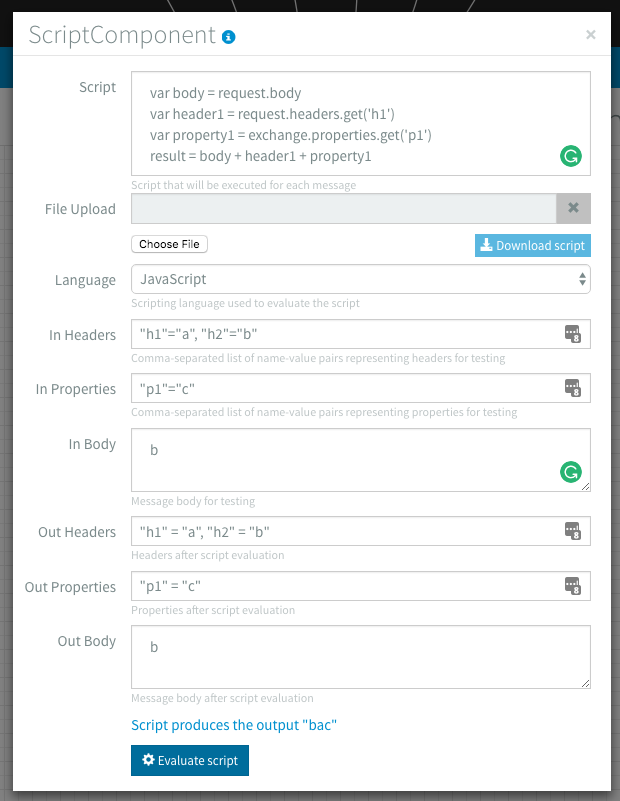
In the Flow Designer you enter test data in text inputs. If those text inputs are empty, the script is actually tested with empty strings. An empty text input is therefore not considered null. If the flow is running and the body is empty, it will be null and not "". If you convert this empty body to string you will get "null". It is best to test your script in runtime with null for the In Body.
Versions
| Version | Groovy version | Javascript version (Engine) |
|---|---|---|
| < 4.14.x | 2.5 | ECMAScript 5.1 (Nashorn) |
| > 4.15.0 | 3.0 Release notes | ECMAScript 2023 (GraalVM) |
| > 4.17.0 | 4.0 Release notes | ECMAScript 2023 (GraalVM) |